
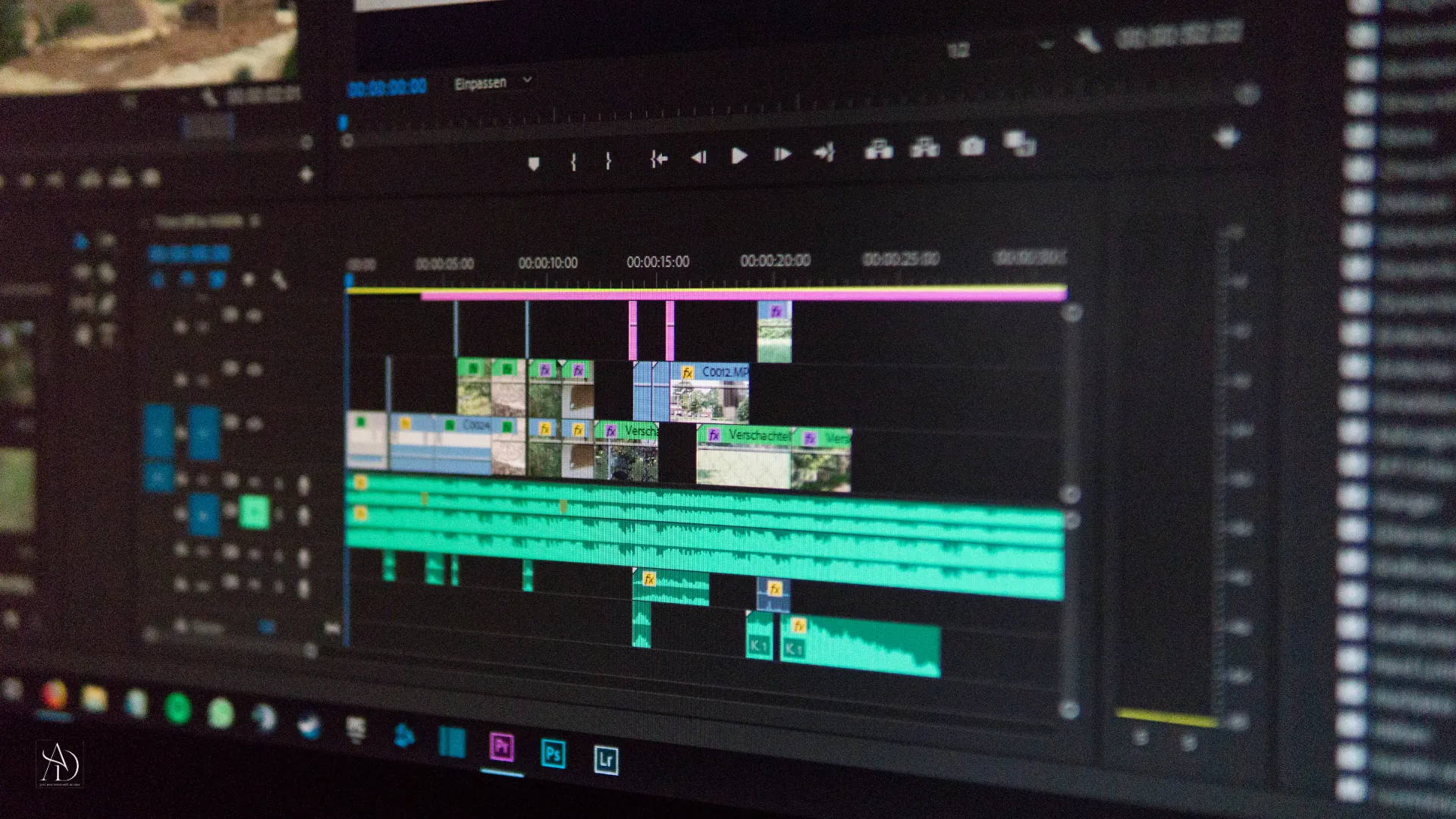
Video Editing Software: Best Video Editing Apps & How to Edit Videos
Video has become one of the most powerful forms of digital content. From YouTube videos and Instagram Reels to TikTok clips, advertisements, tutorials, business presentations, and online courses, video is now an essential part of communication and marketing.
However, creating an engaging video requires more than simply recording footage. Raw clips often need to be trimmed, arranged, enhanced, captioned, combined with music, and optimized for different platforms. This is where video editing software comes in.
Modern video editing software makes it possible for beginners, creators, marketers, businesses, and professional editors to transform raw footage into polished videos. Many tools now also include artificial intelligence (AI), automatic captions, background removal, templates, motion effects, and other features that make editing faster.
In this guide, we will explain what video editing software is, how video editing works, the best video editing apps, how to edit a video, important features to look for, and how to choose the right editor for your needs.
What Is Video Editing Software?
Video editing software is a computer or mobile application used to modify, arrange, enhance, and produce video content.
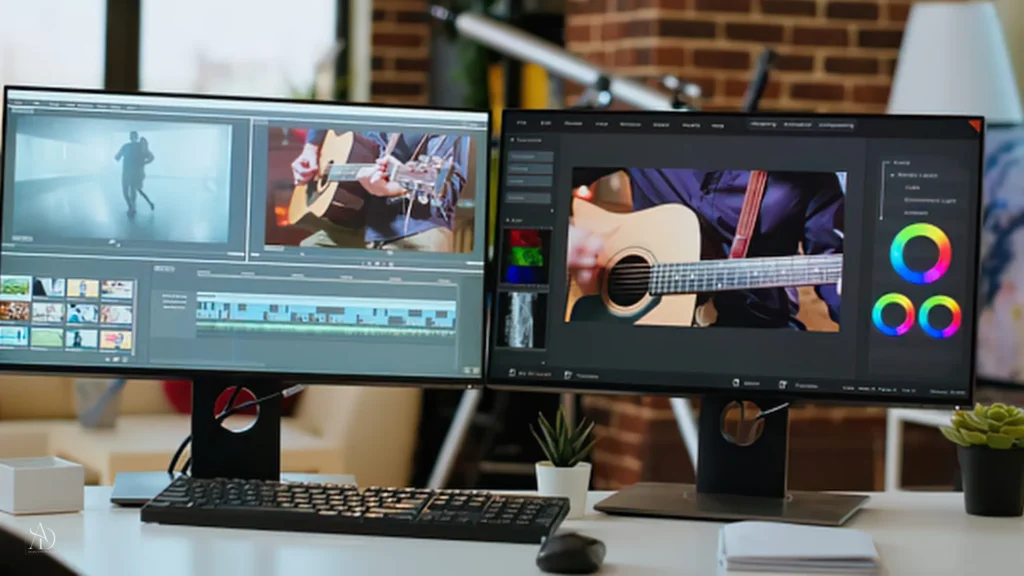
With a video editor, you can take multiple video clips and turn them into a complete video by cutting unwanted sections, adding transitions, inserting text, improving audio, applying effects, adjusting colors, and exporting the finished project.
Video editing software can be used for almost any type of video content, including:
- YouTube videos
- Instagram Reels
- TikTok videos
- Facebook videos
- Short-form content
- Business advertisements
- Product videos
- Educational videos
- Tutorials
- Vlogs
- Presentations
- Wedding videos
- Promotional videos
- Corporate content
Some editors are designed for beginners and focus on simplicity, while professional video editing software provides advanced tools for color grading, audio production, visual effects, motion graphics, and complex timelines.
How Does Video Editing Software Work?
Most video editing programs follow a similar workflow.
First, you import your recorded footage into the software. The clips are then placed on a timeline where you can cut, trim, rearrange, and combine them.
After arranging the footage, you can add elements such as:
- Text
- Captions
- Music
- Voiceovers
- Sound effects
- Transitions
- Filters
- Visual effects
- Animations
- Logos
- Graphics
Once the editing is complete, the video can be exported in a suitable format and resolution.
A basic video editing workflow looks like this:
Record → Import → Cut → Arrange → Enhance → Add Audio → Add Text → Review → Export → Publish
Modern video editing tools can automate several of these steps, particularly through AI-powered features.
What Are the Best Video Editing Apps?
The best video editing app depends on what you want to create, the device you use, your experience level, and the features you need.
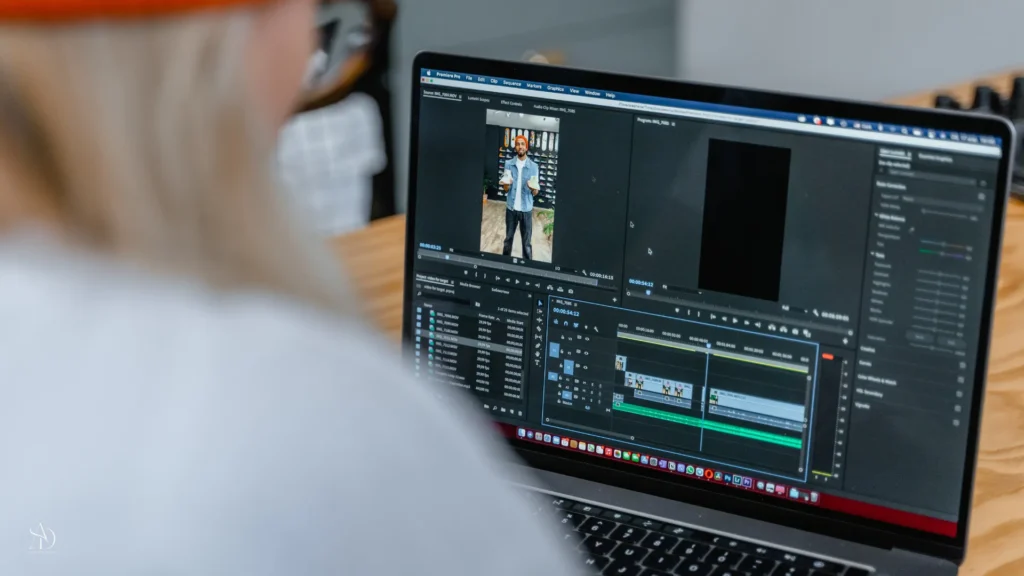
Some users need a simple mobile editor for social media, while others need professional desktop software for long-form videos and commercial projects.
Beginner Video Editing Apps
Beginners generally benefit from editors that provide:
- Simple interfaces
- Drag-and-drop editing
- Ready-made templates
- Automatic captions
- Music libraries
- Basic transitions
- Filters and effects
- Easy export options
These tools allow new creators to start editing without having to understand complicated professional workflows.
Professional Video Editing Software
Professional editors may require advanced capabilities such as:
- Multi-track timelines
- Advanced color correction
- Color grading
- Professional audio editing
- Motion graphics
- Visual effects
- Keyframe animation
- Masking
- Motion tracking
- High-resolution export
- Advanced file-format support
Professional video editing software is commonly used for films, advertisements, corporate videos, documentaries, television content, and high-quality YouTube production.
Mobile Video Editing Apps
Mobile video editing apps are particularly useful for creators who produce short-form content.
They allow users to:
- Edit videos directly on smartphones
- Add captions
- Apply filters
- Add music
- Use templates
- Resize videos for different platforms
- Create Reels and Shorts
- Quickly publish content
For social media creators, convenience and speed can be just as important as advanced editing capabilities.
Which App Is Best for Video Editing?
There is no single best video editing app for everyone.
The right choice depends on your requirements.
For example, a beginner creating Instagram Reels may prefer a simple mobile application with templates and automatic captions. A professional editor working on a long YouTube documentary may need advanced timeline, audio, and color-grading tools.
When choosing an editing app, consider:
- Ease of use – Is the interface beginner-friendly?
- Features – Does it provide the tools you actually need?
- Device compatibility – Does it work on your phone or computer?
- Export quality – Can you export in HD, 4K, or other required formats?
- Templates – Are ready-made designs available?
- Audio tools – Can you edit music, sound effects, and voiceovers?
- AI features – Does the software provide automatic captions, background removal, or other AI tools?
- Pricing – Does the free version meet your requirements?
- Social media support – Can you easily create content in the correct aspect ratios?
The best option is ultimately the software that provides the right combination of features, performance, usability, and price for your specific workflow.
How to Edit a Video?
Learning how to edit a video does not have to be complicated. Most editing applications follow a straightforward process.
Step 1: Choose Your Video Editing Software
Start by selecting an editor that matches your skill level and project.
For simple social media videos, a lightweight editor may be enough. For professional projects, you may need advanced desktop video editing software.
Step 2: Import Your Video
Open your editing application and import your video files.
You may also import:
- Images
- Music
- Voiceovers
- Logos
- Sound effects
- Graphics
- Additional video clips
Organizing your files before starting can make the editing process easier.
Step 3: Trim Unwanted Footage
The first major editing task is removing unnecessary sections.
You can remove:
- Mistakes
- Long pauses
- Repeated scenes
- Unwanted background footage
- Silent sections
- Unnecessary introductions
Good editing often depends on removing content rather than simply adding more effects.
Step 4: Arrange Your Clips
Place the remaining clips on the timeline in the desired order.
You can move clips around until the story or message flows naturally.
For example:
Introduction → Main Content → Supporting Footage → Key Message → Conclusion
Step 5: Add Music and Sound
Audio can significantly affect the quality of a video.
Depending on the project, you can add:
- Background music
- Voiceovers
- Sound effects
- Ambient sound
- Narration
Make sure background music does not overpower the speaker’s voice.
Step 6: Add Text and Captions
Text can make videos easier to understand, especially when users watch without sound.
You can add:
- Titles
- Subtitles
- Captions
- Names
- Important points
- Calls to action
- Product information
For social media videos, clear captions can also make the content easier to follow.
Step 7: Add Transitions and Effects
Transitions help connect different clips.
Common options include:
- Fade
- Dissolve
- Slide
- Zoom
- Wipe
However, transitions should support the content rather than distract viewers.
Similarly, visual effects should be used strategically.
Step 8: Adjust Colors and Lighting
Raw footage may need color adjustments.
Depending on the software, you can modify:
- Brightness
- Contrast
- Saturation
- Exposure
- Highlights
- Shadows
- White balance
Color correction can help create a more consistent appearance across multiple clips.
Step 9: Preview Your Video
Watch the complete video before exporting it.
Check for:
- Spelling mistakes
- Audio problems
- Sudden cuts
- Incorrect captions
- Unwanted footage
- Timing issues
- Inconsistent colors
- Volume problems
A final review can prevent small mistakes from appearing in the published video.
Step 10: Export and Share
Once the video is ready, export it using the appropriate resolution, format, and aspect ratio.
Different platforms may require different video dimensions.
For example, vertical videos are commonly used for short-form platforms, while horizontal videos are frequently used for traditional YouTube content.
How to Edit Videos for Social Media?
Social media has changed the way people approach video editing.
Short-form content needs to communicate its message quickly because viewers can scroll away within seconds.
When editing videos for social media, consider the following:
Start With a Strong Hook
The opening seconds should give viewers a reason to continue watching.
A strong hook could be:
- A question
- A surprising fact
- A bold statement
- A problem
- A quick demonstration
- A compelling visual
Use Captions
Many people watch social videos without sound. Captions can help communicate the message even when audio is turned off.
Keep the Editing Fast
Remove unnecessary pauses and repetitive sections.
Use Vertical Video When Appropriate
For platforms focused on short-form content, vertical video is often the preferred format.
Add Branding
Businesses can use:
- Logos
- Brand colors
- Fonts
- Product information
- Calls to action
Consistent branding can make videos more recognizable.
How to Edit TikTok Videos With Text?
If you want to learn how to edit TikTok videos with text, most modern video editing apps provide simple text tools.
A basic workflow is:
- Import your video.
- Place the video on the timeline.
- Select the text or caption tool.
- Enter your message.
- Choose a readable font.
- Adjust the text size.
- Position the text on the screen.
- Set when the text should appear.
- Add animation if appropriate.
- Preview the video.
- Export it in a suitable vertical format.
Timing is particularly important. Text should appear when the viewer needs the information and disappear before it becomes distracting.
How to Edit Face in Video?
Many modern video editing applications provide tools for editing or enhancing faces in videos.
Depending on the software, you may be able to:
- Improve lighting
- Adjust skin tones
- Apply subtle retouching
- Reduce visual imperfections
- Blur a face
- Track a face
- Apply filters
- Adjust exposure
- Add creative effects
When using face-editing tools, natural-looking adjustments generally produce better results than excessive filters.
For privacy-related editing, face blur or masking can also be useful when a person’s identity should not be visible.
What Features Should You Look for in Video Editing Software?
Before choosing video editing software, look beyond the basic ability to cut clips.
Important features include:
1. Timeline Editing
A flexible timeline makes it easier to manage multiple video and audio tracks.
2. Trim and Split Tools
These are essential for removing unwanted footage and breaking videos into manageable sections.
3. Text and Caption Tools
Look for customizable fonts, animations, subtitles, and automatic caption features.
4. Audio Editing
Good software should allow you to control music, voiceovers, sound effects, and volume levels.
5. Transitions
Transitions help create smoother connections between scenes.
6. Visual Effects
Effects can add creativity to videos when used appropriately.
7. Color Correction
Color tools allow you to improve exposure, contrast, saturation, and consistency.
8. AI-Powered Features
Modern editors may offer AI tools such as:
- Automatic captions
- Background removal
- Object detection
- Voice enhancement
- Automatic editing
- Text-to-video features
- Speech-to-text
- Smart reframing
9. Motion Tracking
Motion tracking allows text, graphics, or effects to follow moving objects.
10. High-Quality Export
If you’re producing professional content, look for support for high-resolution formats and appropriate export settings.
Video Editing Software vs Video Editing Apps
Although the terms are often used interchangeably, video editing software can refer broadly to both desktop programs and mobile applications.
| Feature | Desktop Video Editing Software | Mobile Video Editing Apps |
|---|---|---|
| Screen size | Large | Small |
| Editing control | Advanced | Usually simpler |
| Professional projects | Excellent | Limited to moderate |
| Social media content | Excellent | Excellent |
| Portability | Lower | High |
| Templates | Available | Often extensive |
| Advanced color grading | Usually better | Depends on app |
| Multi-track editing | Strong | Varies |
| Ease of use | Varies | Usually beginner-friendly |
| Quick editing | Moderate | Excellent |
If you create quick social media videos, a mobile editor may be all you need.
If you work with complex projects, multiple tracks, high-resolution footage, or professional production, desktop software may be more suitable.
Free vs Paid Video Editing Software: Which Should You Choose?
There are many free video editing tools available, but they may come with limitations.
Free Video Editing Software
Free tools may provide:
- Basic trimming
- Transitions
- Text
- Filters
- Music
- Standard exports
They are often suitable for beginners and casual creators.
Paid Video Editing Software
Paid software may offer:
- Advanced editing tools
- Premium effects
- Professional color grading
- Advanced audio features
- AI tools
- More export options
- Larger asset libraries
- Better support
You do not necessarily need expensive software to create good videos. The best choice depends on your project and editing requirements.
How to Choose the Best Video Editing Software?
Choosing the right video editor becomes easier when you first identify your requirements.
For Beginners
Choose software that is:
- Easy to understand
- Template-based
- Simple to export
- Equipped with basic editing tools
For YouTubers
Look for:
- Strong timeline editing
- Audio controls
- Captions
- High-resolution export
- Thumbnail and branding workflows
For Social Media Creators
Prioritize:
- Vertical video editing
- Templates
- Captions
- Effects
- Fast export
- Music
- Social-media-friendly formats
For Businesses
Businesses may benefit from:
- Branding tools
- Templates
- Team collaboration
- Consistent visual styles
- High-quality exports
- Captioning
- Marketing-focused features
For Professional Editors
Professional users generally need:
- Advanced timeline editing
- Color grading
- Audio production
- Motion graphics
- Visual effects
- Multiple file formats
- High-resolution workflows
Why Is Video Editing Important for Digital Marketing?
Video editing is no longer limited to filmmakers and professional production studios. It has become an important part of digital marketing.
Businesses use edited videos for:
- Social media marketing
- Product promotion
- Paid advertising
- YouTube marketing
- Brand awareness
- Customer education
- Tutorials
- Testimonials
- Product demonstrations
- Corporate communication
A well-edited marketing video can communicate complex information more quickly than a long block of text.
For digital marketers, learning video editing can therefore become a valuable skill alongside SEO, social media marketing, Google Ads, Meta Ads, and content marketing.
How Can Businesses Use Video Editing Software?
Businesses can use video editing software to create professional-looking content without producing every video through a traditional production studio.
For example, a business could create:
Product Videos: Demonstrate product features and benefits.
Educational Videos: Explain common customer questions.
Social Media Videos: Create Reels, Shorts, and other short-form content.
Advertisement Videos: Produce promotional content for paid campaigns.
Customer Testimonials: Turn customer interviews into engaging video content.
Behind-the-Scenes Videos: Show how products or services are created.
Tutorial Videos: Teach customers how to use a product.
The key is to match the editing style with the purpose of the video.
Common Video Editing Mistakes to Avoid
Even powerful video editing software cannot automatically make every video effective.
Avoid these common mistakes:
Using Too Many Effects
Too many transitions, animations, and filters can make a video look unprofessional.
Ignoring Audio
Poor audio can reduce the quality of an otherwise good video.
Making Videos Too Long
Remove unnecessary content and keep the video focused.
Using Difficult-to-Read Text
Small fonts, poor contrast, or excessive animation can make captions difficult to read.
Poor Pacing
Long pauses and repetitive footage can cause viewers to lose interest.
Ignoring Platform Requirements
Always consider the platform, aspect ratio, resolution, and audience before exporting.
Frequently Asked Questions About Video Editing Software
What is video editing software?
Video editing software is a program or application that allows users to cut, arrange, enhance, and combine video clips with audio, text, graphics, transitions, and effects.
Which app is best for video editing?
The best video editing app depends on your requirements. Beginners may prefer simple editors, social media creators may prioritize templates and captions, while professional editors may need advanced desktop software.
How to edit a video for beginners?
Start by importing your footage, trimming unwanted sections, arranging clips, adding music and text, adjusting the audio and visuals, reviewing the final video, and exporting it in the appropriate format.
How to edit videos for social media?
Use a strong opening hook, remove unnecessary footage, add readable captions, use an appropriate aspect ratio, maintain good audio quality, and keep the editing pace suitable for the platform.
How to edit TikTok videos with text?
Import the video into your preferred editor, add a text layer, customize its font and position, set its timing, add animation if required, preview the result, and export the finished vertical video.
How to edit face in video?
Depending on the editing software, you can use tools for retouching, color adjustment, face tracking, filters, masking, or face blur. Use these features carefully to maintain a natural appearance.
Is video editing software free?
Some video editing software is completely free, while others offer free versions with limitations or require a subscription. Your choice should depend on the features you need.
What software do professional video editors use?
Professional editors generally choose software based on the project’s requirements, including timeline control, color grading, audio editing, visual effects, motion graphics, collaboration, and export capabilities.
Can beginners learn video editing?
Yes. Modern video editing apps have made editing significantly easier for beginners. Starting with basic cutting, trimming, text, audio, and transitions can help you build editing skills before moving to advanced techniques.
Final Thoughts
Video editing software has made professional-looking video creation accessible to almost everyone. Whether you are a beginner creating your first video, a content creator producing social media content, a YouTuber building a channel, or a business creating marketing campaigns, the right editing tool can make the process faster and more effective.
The best video editing app is not necessarily the one with the most features. It is the one that matches your skill level, device, budget, content type, and publishing goals.
Start with the basics: learn how to import footage, cut unwanted sections, arrange clips, improve audio, add captions, use transitions, and export correctly. As your skills develop, you can explore advanced features such as color grading, motion tracking, AI editing, visual effects, and professional audio production.
Most importantly, remember that good video editing is not about adding as many effects as possible. It is about using the right edits to tell a clearer story, communicate your message, and keep your audience engaged.